How to Use Interactive Lessons on Zoom: A Step-by-Step Guide for Online ESL Teachers
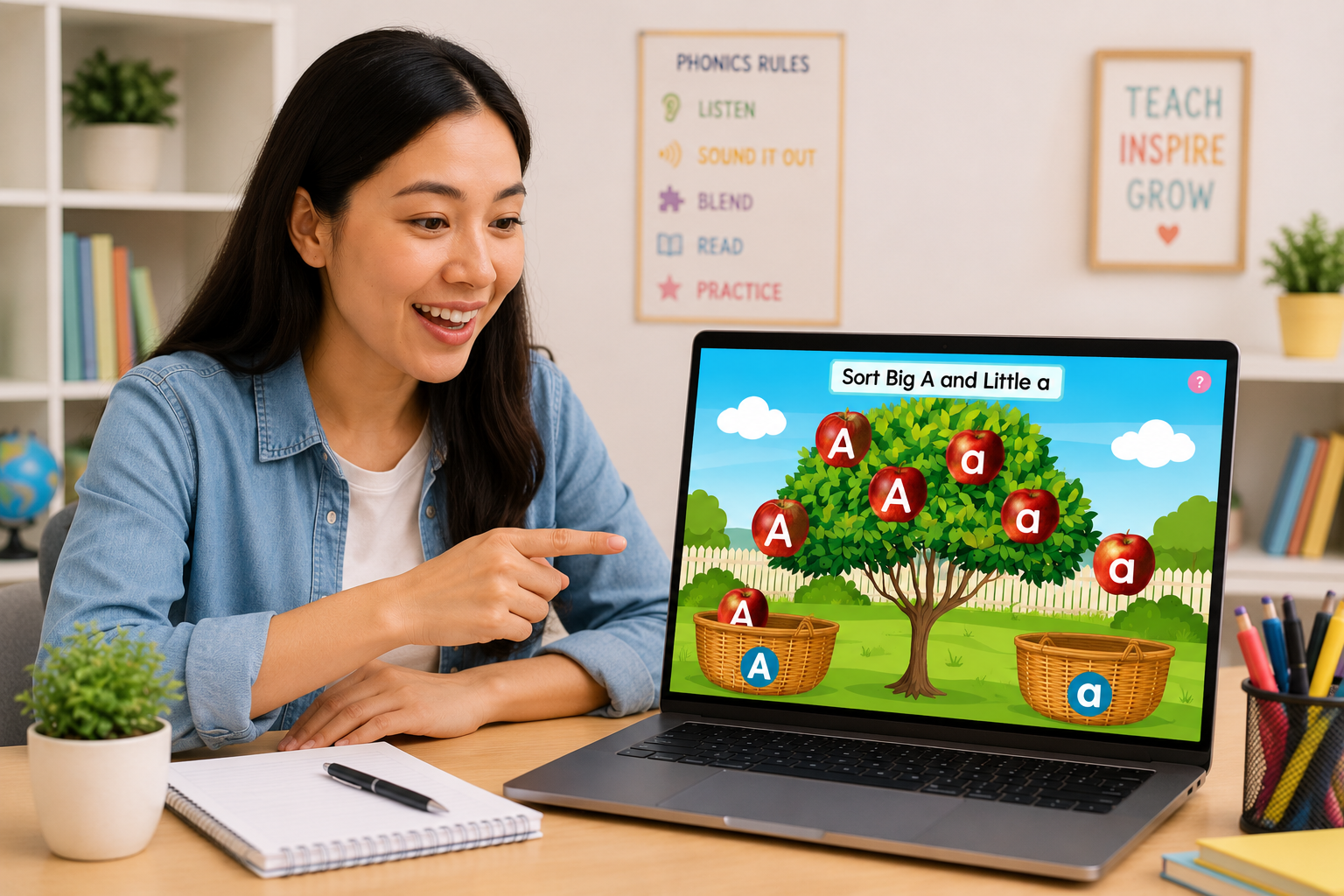
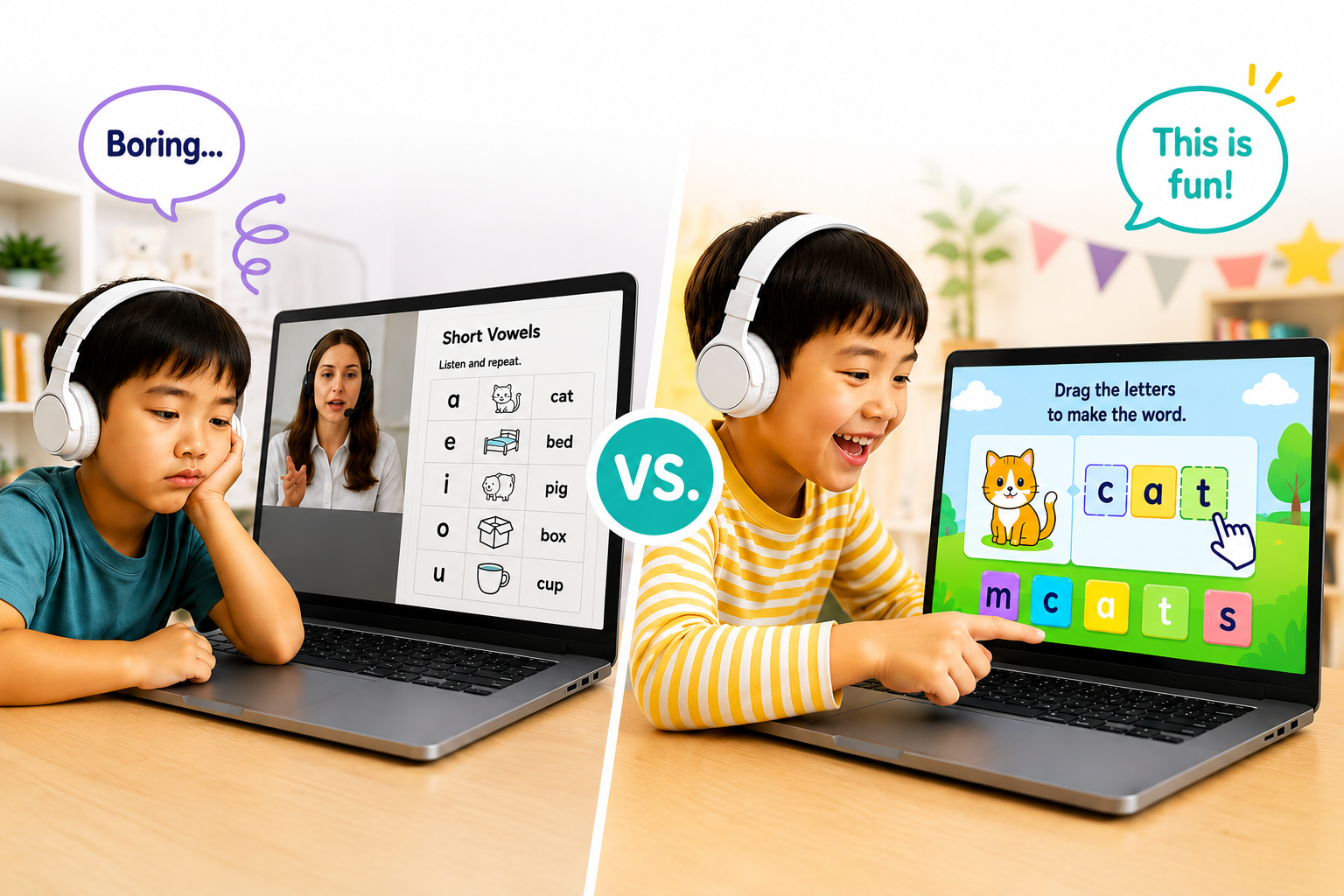
Wondering how to use interactive lessons on Zoom so your student can click, drag, and play instead of just watching? On a normal Zoom screen share, your student can only look. The good news is that Zoom has a built-in feature called remote control that lets your student use their own mouse to play the lesson on your screen, while you stay in charge of the class.
In this guide, you will learn how to use interactive lessons on Zoom from start to finish: how to share your screen with sound, how to give your student remote control, and how to take it back in one second. We will use our Phonics Level 1, Lesson 1: Letters A and B as the example, but the same steps work for every Easy Peasy Learning lesson and game.
How to Use Interactive Lessons on Zoom: What You Need Before Class
- The Zoom desktop app on your computer. Remote control is not available from a browser.
- A student on a laptop or desktop computer with the Zoom desktop app. Students on an iPad or phone cannot take remote control (more on that below).
- Remote control turned on in your Zoom account. Sign in at zoom.us, go to Settings, then In Meeting (Basic), and switch on Remote control. You only need to do this once.
- Your Easy Peasy Learning lesson open in your browser, ready to go on the first slide.
Step 1: Open Your Easy Peasy Learning Lesson
Log in to Easy Peasy Learning and open the lesson you want to teach. For this example, open Phonics Level 1, Lesson 1, where students recognize the letters A and B and learn the sounds they make. Keep the lesson on the title slide so it is ready when your student joins.
That is all the prep you need on your side. Everything else happens in Zoom.
Step 2: Click Share in Your Zoom Meeting
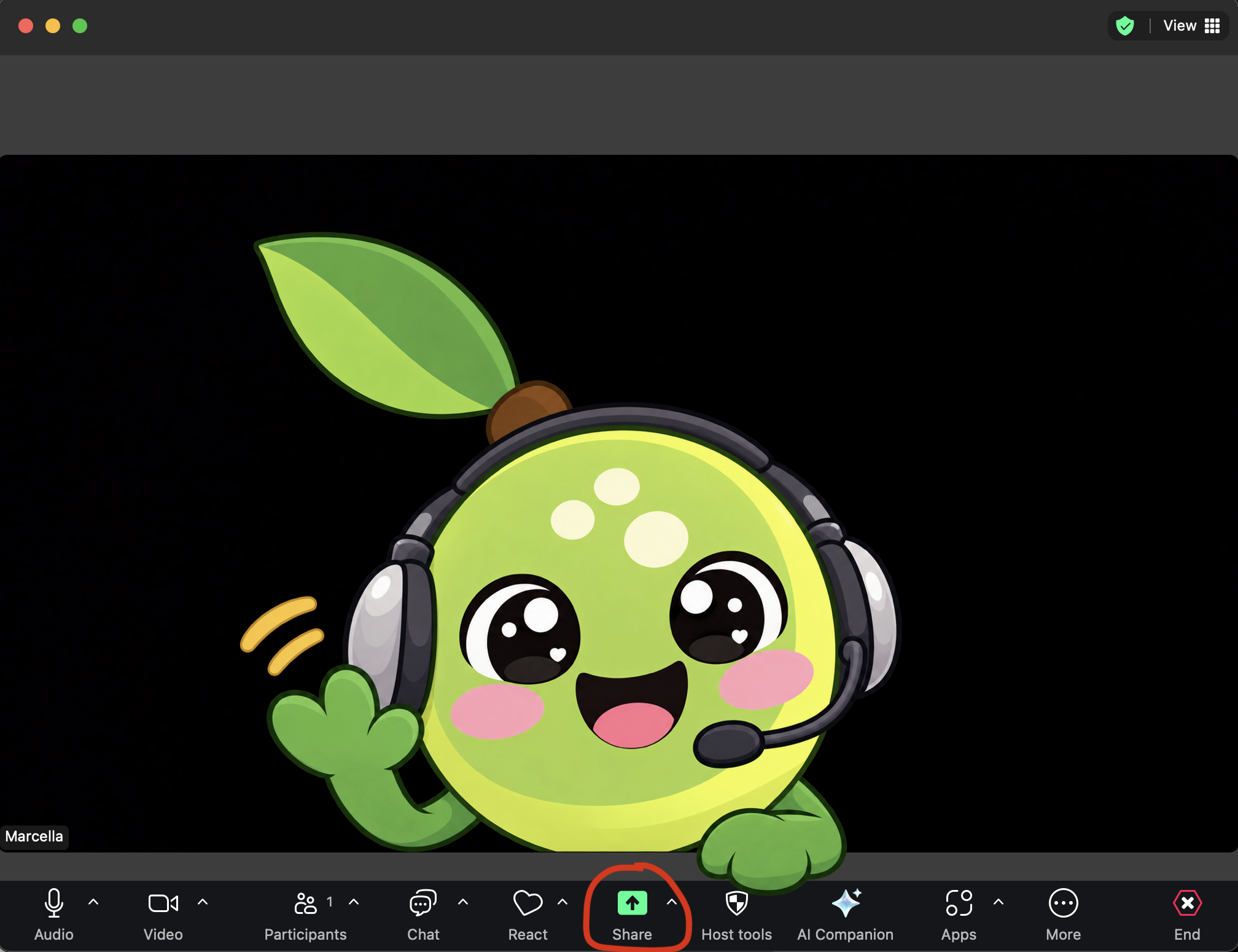
Start your Zoom meeting and let your student in. Then click the green Share button in the toolbar at the bottom of the meeting window.
Step 3: Choose Portion of Screen and Turn On Share Sound
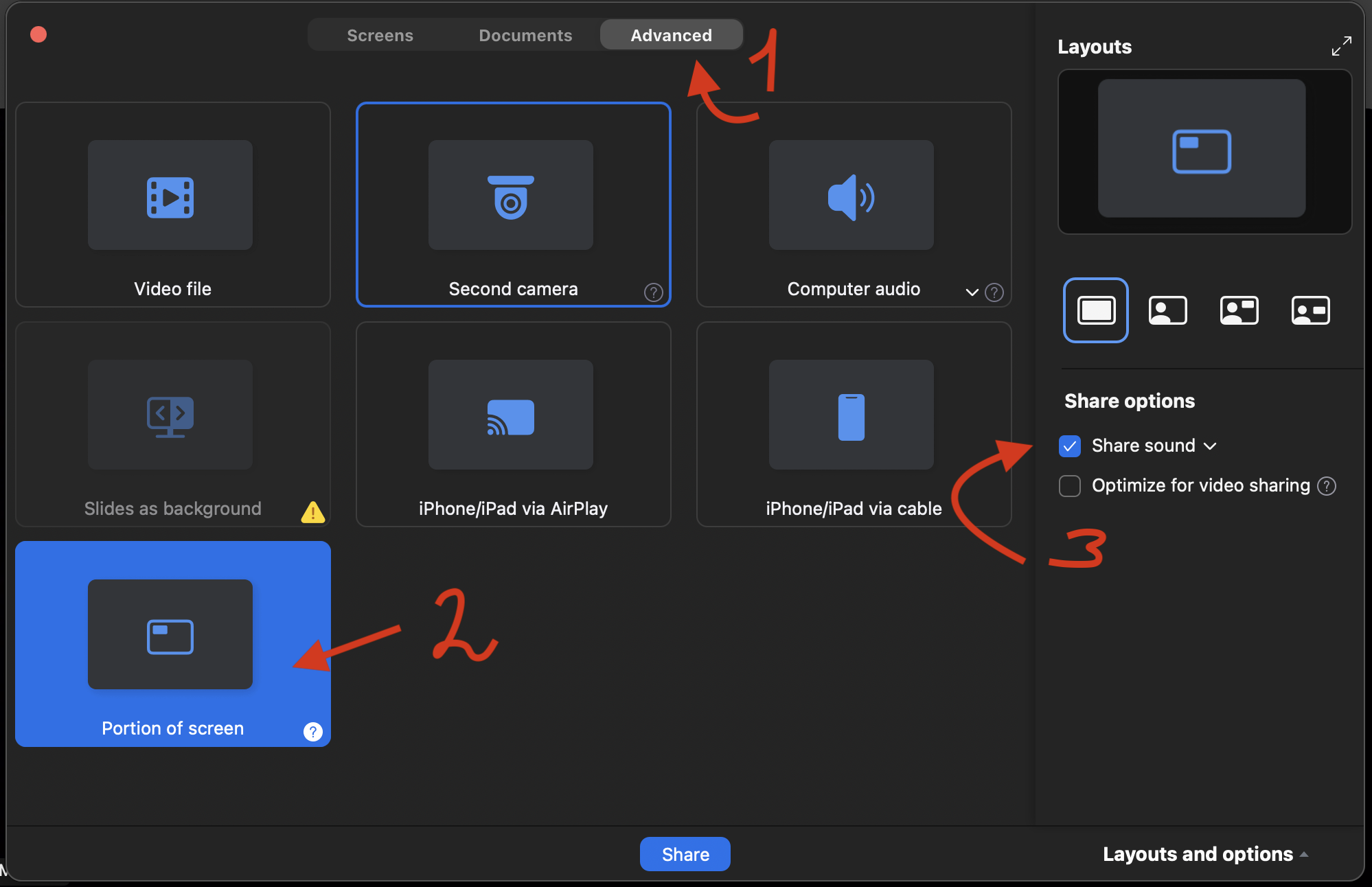
In the sharing window, follow the numbers in the picture below:
- Click the Advanced tab at the top.
- Select Portion of screen. This lets you share just the lesson, so your student does not see your desktop, tabs, or notes.
- Check the box for Share sound. This is the step teachers forget most often. Easy Peasy Learning lessons are full of audio, like letter sounds, words, and songs, and without this box your student will not hear any of it.
Click the blue Share button. A green frame appears on your screen. Drag and resize it so it fits neatly around the lesson.
Step 4: Give Remote Control to Your Student
Now for the magic part. While you are sharing:
- Click Remote control in the Zoom toolbar (the mouse icon). If you do not see it, check under More.
- Under Give mouse/keyboard control to, click your student’s name.
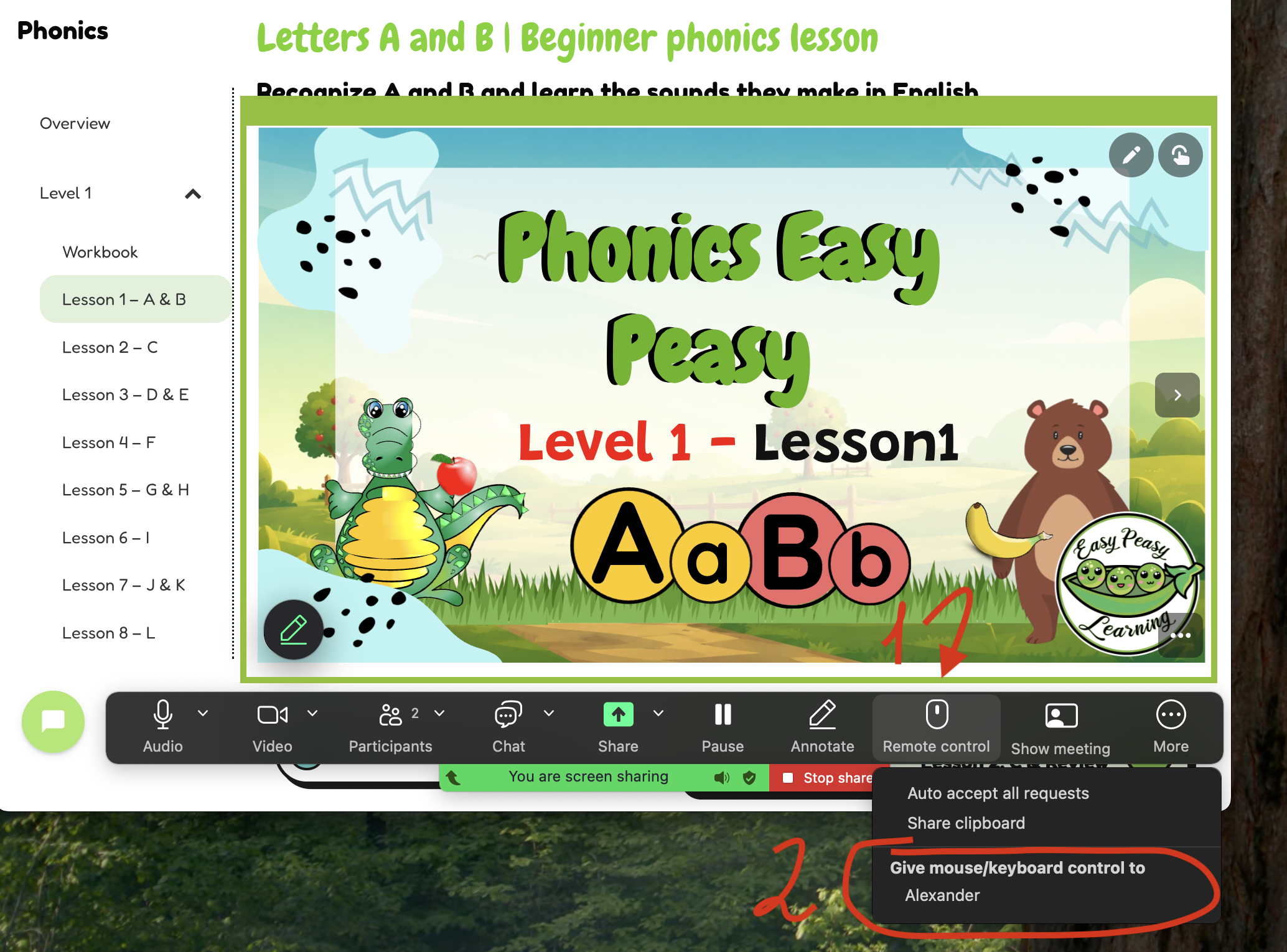
Tell your student to click once inside your shared screen. From that moment, they can click the arrows, answer questions, drag items, and play the games in the lesson, just like they would at home.
Tip: You will also see an option called Auto accept all requests. Leave it off. It lets students take control whenever they ask, which is not what you want with young learners.
How to Take Back Control Fast
Here is something every teacher should know before trying this: when your student has remote control, they are really using your mouse. If they click around wildly, it can feel like you have lost control of your own computer.
Don’t worry. You can take it back in a second:
- Click anywhere on your own screen. Your mouse always wins, so one click pauses your student’s control.
- Mac: press Control + Shift + G to stop remote control completely.
- Windows: press Alt + Shift + G to stop remote control completely.
Practice this shortcut once before class. When you need it, you will need it quickly.
Who Should Get Remote Control?
Once you know how to use interactive lessons on Zoom, the next question is who gets the mouse.
Remote control works best with students you know and trust. Older kids and students who have had a few classes with you usually handle it well. They click where you ask and hand control back when the activity is done.
With very young learners, it can be harder. A 5-year-old who discovers they can move your mouse may not want to stop! For these students, try giving control only for one short activity at a time, then take it back with the keyboard shortcut. You can also keep control yourself and let the student tell you or point to what to click, which still keeps them fully involved.
Teaching Students on an iPad? Use Koala GO Instead
This is the big one: Zoom does not let students take remote control from an iPad (or a phone). If your student joins from a tablet, the Remote control option simply will not work for them.
Many young learners take class on an iPad, so if that is your audience, the best tool is Koala GO. It is a virtual classroom built for teaching kids online, and its shared browser lets you and your student click through the same lesson together, right from an iPad. Read our full guide here: How to Use Koala GO for Interactive ESL Lessons.
Quick Troubleshooting
- No Remote control button? Make sure your student has joined the meeting. Zoom only shows the option when someone else is there. If it is still missing, turn on Remote control in your zoom.us settings, then stop and restart your share.
- Your student has control but nothing happens when they click? On a Mac, open System Settings, then Privacy & Security, then Accessibility, and switch on zoom.us.
- Your student cannot hear the lesson? Stop sharing and share again with Share sound
Frequently Asked Questions
Can students interact with my screen on Zoom?
Yes. When you share your screen, click Remote control and choose your student’s name. They can then click and type on your shared screen using their own mouse and keyboard.
How do I stop remote control on Zoom?
Click anywhere on your screen to take control back instantly. To stop it completely, press Control + Shift + G on a Mac or Alt + Shift + G on Windows.
Can a student on an iPad use Zoom remote control?
No. Zoom remote control only works for participants on the desktop app. For iPad students, a platform with a shared browser, like Koala GO, is the best option.
Why can’t my student hear the lesson on Zoom?
You need to check Share sound when you start sharing your screen. Without it, the lesson audio only plays on your computer.
Ready to Try It?
Interactive lessons are more fun when your student gets to click, and now you know exactly how to make that happen on Zoom. Open Phonics Level 1, Lesson 1, share your screen with sound, hand over the mouse, and watch your student light up as they learn the sounds of A and B.
Make Every Online Class Interactive with Easy Peasy Learning
If you’d like to use interactive lessons to keep your students engaged online, Easy Peasy Learning was built for exactly that. It is a complete, no-prep ESL curriculum for kids and young learners, designed by online ESL teachers who know what works on screen.
Here is what you get:
- Ready-made interactive lessons that follow a step-by-step sequence, so you always know what to teach next.
- Hundreds of built-in ESL games your students can play right inside Zoom with remote control.
- Everything from phonics to Cambridge exam prep, covering vocabulary, reading, writing, grammar, speaking, and listening.
- Teacher tips and pre-written feedback that cut your prep time to almost nothing.
- New lessons and games every week, so your classes never get stale.
Browse the full library and find your next lesson here: See All Easy Peasy Learning Lessons.